WordPress website can be shown 401.2 error on hosting website. Mostly 401.2 unauthorized error comes, when you host your WordPress website on locally.
Locally WordPress website hosted on wamp server. wamp server works as local server.
After installing wordpress website, you should run with http://localhost url.
Whenever port is not set correctly or blocked. at that time WordPress local host url showing error. - Http Error 401.2 – Unauthorized
Here i gives full solution on your problem, Http Error 401.2 – Unauthorized on WordPress website.
So read carefully and apply necessary changes in configuration file, installed in wamp server.
Before this, i explained WordPress install locally. Useful installation guide on bluehost, ipage and hostgator.
Step 1
Type Wamp in start menu search box. on result you will get "start wamp server". Click on it.
Step 2
Wamp server should be start in 2 to 5 seconds. From the bottom right corner you can open wordpress website.
Step 3
Just click on local host under the wamp server icon.
Step 4
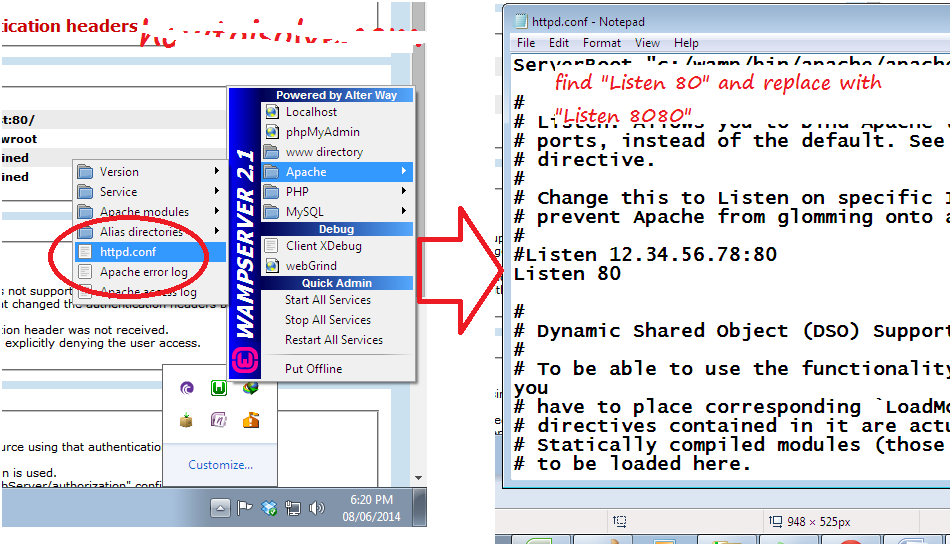
Now you got server error 401.2. now open httpd.conf file.
Apache > httpd.conf
Step 5:
From this find "Listen". you will get below screen.
Wordpress installation error - 401.2, step 6
Step 6:
Now change port number. And save file.
After changes saved successfully you must restart your wamp server.
Step 7:
Again try to open WordPress website in your browser locally. It should be open your WordPress website.
Your job has been done,
Related search for this post,
Solve Basic installation error in WordPress
How to solve WordPress error 402.1
Step to solve local host error
If you have any problem feel free and comment in below comment box. And get instant help from our side.
Locally WordPress website hosted on wamp server. wamp server works as local server.
After installing wordpress website, you should run with http://localhost url.
Whenever port is not set correctly or blocked. at that time WordPress local host url showing error. - Http Error 401.2 – Unauthorized
Here i gives full solution on your problem, Http Error 401.2 – Unauthorized on WordPress website.
So read carefully and apply necessary changes in configuration file, installed in wamp server.
Step to solve http Error 401.2 - Unauthorized in WordPress
Before this, i explained WordPress install locally. Useful installation guide on bluehost, ipage and hostgator.
Step 1
Type Wamp in start menu search box. on result you will get "start wamp server". Click on it.
 |
Wordpress installation error - 401.2, step 1 |
Wamp server should be start in 2 to 5 seconds. From the bottom right corner you can open wordpress website.
 |
| Wordpress installation error - 401.2, step 2 |
Just click on local host under the wamp server icon.
 |
Wordpress installation error - 401.2, step 3 |
 |
| Wordpress installation error - 401.2, step 4 |
Step 4
Now you got server error 401.2. now open httpd.conf file.
Apache > httpd.conf
 |
Wordpress installation error - 401.2, step 5 |
Step 5:
From this find "Listen". you will get below screen.
 |
| Wordpress installation error - 401.2, step 6 |
Step 6:
Now change port number. And save file.
After changes saved successfully you must restart your wamp server.
Step 7:
Again try to open WordPress website in your browser locally. It should be open your WordPress website.
 |
| Wordpress installation error - 401.2, step 7 |
Related search for this post,
Solve Basic installation error in WordPress
How to solve WordPress error 402.1
Step to solve local host error
If you have any problem feel free and comment in below comment box. And get instant help from our side.

