Wednesday, July 2, 2014

How to stop and turn off Facebook notification email in Gmail, Yahoo and Bing

Today’s largest social networking Facebook, Most of the people are using Facebook for business, Social networking, Business promotion and chatting with friends, and family over worldwide. So when ever new updates are comes in your account as a notification. Notification mail sent on register email iD in your Facebook account. This mail auto set by default is yes. Now you have to disable this option using below steps, to stop or disable Facebook mail comes in your mail account.

Useful: How to hide mutual friend from Facebook side bar in Facebook profile.
Ways to increase Facebook page likes
Download any Facebook video without any software, Directly in your browser
How to see sent Facebook friend request and cancel friend request?

Steps to stop mail notification in Facebook account


Step 1

Go facebook.com, Login with your email or password.

Step 2

Click on setting gear icon at top right corner of your desktop screen. Given in below,
Select Account settings option given there (Dynamic popup)
stop Facebook notification mail

Step 3

Now click on notification tab in the account settings.
Account Settings > Notifications
Click notification under setting to stop Facebook mail

Step 4

After that, Next screen will be what types of notification you want to stop forever. Like post, group, friend request.
Now click on Email with edit link in front of this, (Given in below image)
set email notification settings

Step 5

After click on edit, you can see all notification types with radio options. To stop or disable email notification you have to check third option given in below figure.
Select mail option for Account security and privacy
you want more guide on this tutorial or any problem comment in below, we will glad to assist you.

Tuesday, July 1, 2014

How to turn off Facebook notification for particular Facebook game notification or group or pages

Friends, you are very irritant on Facebook notification, but you can stop notifications that are coming from game request, New post on page and groups. First time I very angry from these types of request coming from our friends as a notification. Notification gives suggestion to participate in this game to get more coin or points in game. After follow the below step your must stop all unwanted and unnecessary request coming from unknown or friends profile.

Useful: How to hide mutual friend from Facebook side bar in Facebook profile.
              Ways to increase Facebook page likes

              Download any Facebook video without any software, Directly in your browser

How to see sent Facebook friend request and cancel friend request?

Steps to stop notification in Facebook coming from game updates, New post on pages and group

Step 1

To stop notification those are coming on continuously time. To stop particular notification you have to in front of the notification in same category, and click on cross button that will be show when you hover there.

Through the single click you can stop all the same categories notification for all time
That’s give in below,
In below screen you can stop all notification that’s coming from howtoisolve.com page.

Press Stop button after click on cross button
Step 2

After click on “x” button, ask for turn of as double verification.
Click on “Turn Off” otherwise click on “Keep on”.
Stop notification click on Turn Off given in below screen.
Stop facebook notification for all time coming from game and post, pages

Its done, From this tricks you can stop all particular notification of game, Apps, Post, Group and pages updates notifications.

More over friends are sending notification for to join group and page. Now a days Facebook notifications are coming in double number through the candy crash and zynga poker game.
To know more on Facebook tips and tricks state you on with Us, Through connect our social page, Facebook, Google+ and twitter.

Mute Facebook notification and chat sound from your Facebook profile
How to block Facebook [social sites] in your laptop or desktop browser
How to make scanned photo without scanner in your mobile

Don’t miss to share this very useful post with your friends. You have any confusion and advance tips comment in below comment box.

Monday, June 30, 2014

How to delete google plus(Google+) account| Step by Step guide to remove Google+ profile

Google’s social networking site, Google+ is most popular to connect friends in word wide. Through google+ account you can chat and share awesome picture, post and useful article over worldwide by Group or topic. To increase your profile more by simply follow the unknown or interested categories people over worldwide. More over friend are always try to delete own google+ account. Here, I am sharing article on how to delete own Google+ account permanently. More over people are removing own account due to invalid and dummy request and friend’s nuisance.

Useful: Google's time saving searching tips.

Steps to delete Google+ account | Deactive Google+ account

Step 1
GO: http://www.plus.google.com
To login Google plus account you need Gmail username and password.

Step 2
After login successfully you next step should be move setting. To go setting You have to click on profile picture, at top right corner of the screen.
Remove Google plus account


Step 3
After completing step 2, you can see small hover tab at this corner. Now click account link given inside.

Step 4
After moving on Account screen, you can see many options. From this option, click on Data tools.
Disable Google plus account settings


Step 5
Under the Data tools option you can see three different options to Delete or remove your Google plus profile.

  • Delete Google+ and profile features
  • Delete account and Data
  • Delete products

From there you have to select,
Delete Google+ and profile features

Step 6
After selecting first option, verify and confirm delete you account. accept the condition with selecting checkbox given in below.

Then click on Remove selected services

Now you are done, you have deleted your own profile in plus.google.com (Google+) social sites for ever. Now to join in future you can join easily.

you are social marketers, SEO master and webmaster then you have to know the power of google+. Through Google+ profile you can easily increase google index ranking of your blog or website in easy way.

Useful: Increase website/blog Traffic instantly.

Related search,
Remove Google+ account,
How to delete plus.google.com account? How to suspend Google+ account?
Basic steps to remove Google+ account.

So always use Google+ and keep posting with sharing button, given in below.

Thursday, June 26, 2014

How to open private browsing in chrome, Firefox and IE (internet explorer)

Private browsing in browser, Chrome, Firefox, IE (internet explorer). Using private browsing you can protect yourself from store your data on another browser like personal information, Username and password. If you are buying online from E-commerce site than you must have to use private browsing on all browsers are Chrome, Firefox, IE (internet explorer).

In private browsing you protect yourself with not stored cookies, Browsing history, and download file information.

More over friends suggest me, keep internet surfing on unknown friends and person’s computer always in safe mode of browser: Private browsing in browser

How to turn private browsing in Chrome, Firefox, and IE(Internet Explorer)

To enable private browsing in Firefox

Using two different steps you can move your Firefox in private browsing.
Method 1: Simple and easiest way to move Firefox in private browsing, open FireFox on your desktop and laptop.
Press key from keyboard = Ctlr + Shift + P
Method 2: Open Firefox, in your Desktop and Laptop
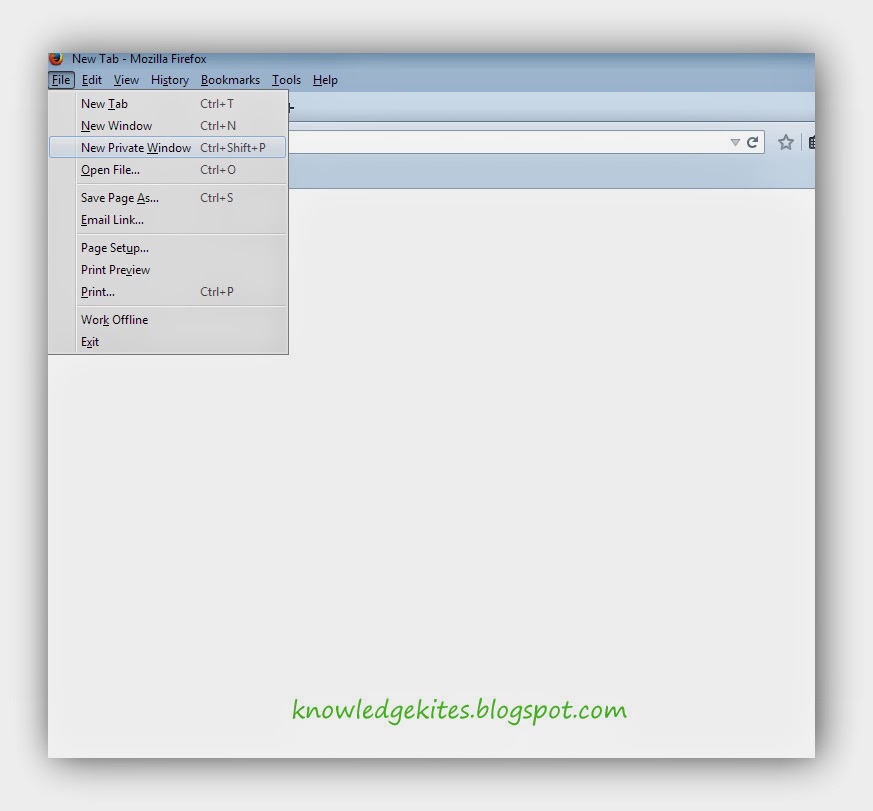
Go > File > New Private windows (More see in below image)
Private Browsing in Mozila

To enable private browsing in Chrome

Method 1: Method 1 is same as given in fire fox. To open private browsing in chrome. Open Google chrome in your screen. Type key from your keyboard: Ctlr + Shift + N
Method: 2
From top right corner click on Customize button, select New incognito window. More click on below image
Private Browsing in Chrome
Add caption

To enable private browsing in internet Explorer

Method 1
Open internet explorer in your screen,
Press key from keyboard = Ctlr + Shift + P
Method 2
To open tools please click f10 key.
Tools > in private browsing, (Given in below image)

Private browsing in IE

Related Search for this post,
Private browsing
Turn of private browsing in Chrome, Firefox, IE (internet explorer).


Don’t miss to share and comment if any problem.

Tuesday, June 24, 2014

How to Stop automatically update Android App or OS in android mobile

Android mobile with hundreds of installed apps, give problem of update apps when internet connection and wifi networks are available. Auto updates create problem of slow internet connection when we start mobile data transfer from android smart phone.
After set auto updates off, you can get notification on installed application updates are available.

Mainly: Stop auto update can set using 2 easy steps given in below

Old android OS can’t gave second option for stop auto updates app. You can set one of this given in below.

Method 1: Stop auto update apps from google play store

Step 1
Open google play store from your android mobile.
Step 2
Now tap on google play menu tab (Upper right corner given in dots) Than click on setting button.

Open Google play - Click on Setting tab - 1

Step 3
Now click on Auto updates App.

Select Auto Update for stop auto update  - 1
Select Auto Update for stop auto update  - 1

Step 4
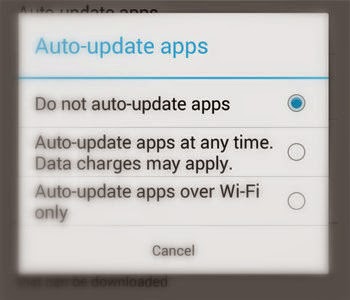
Now you can see one redio popup with 3 different options, than select “Do not auto-update apps”.
Select Do not auto update apps

Now you can get auto update apps notification when you have internet or wifi connection.

Method 2: Stop auto update from device setting

Through these methods you can also stop update mobile OS update and Application updates.
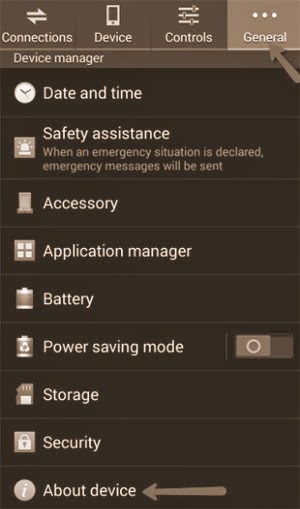
Now Go Setting > General Tab > About Device > Software Update > Uncheck Auto-Update

Open general from setting in android mobile

Click on Auto Update
Uncheck auto updates to stop all update from android smart phone
Now you are done in second method to stop auto update in android mobile.

Related Search:
Update Notification stop in android mobile.
How to stop update in android?
Settings for set android OS update and application.

You are getting some problem to stop auto update in your android smart phone, comment in below comment box. We will be glad to help you.

Monday, June 23, 2014

Top 10 android apps for Smartphone - You must have to use

Android is giving millions of apps in free and paid version to end users. But from this list some of the most popular and useful apps for mobile and users. So I try to share list of top 10 android apps. So download instantly and use your mobile in smart way.

Don’t miss to share this best apps list in android. If you have any useful apps apart from this list, comment in below comment box.

Useful: How to stop my android phone from hanging?
Useful: How to Play all android game on Mac OS X.

Best 10 android essential apps for your android Smartphone: You must install

Opera Mini Browser – Light weight browser

Opera Mini Browser gives fastest browsing service to android smart phone users. Opera is compactable to all the mobile brands, HTC, Nokia, Samsung, LAVA, Gionee, Micromax. Opera declare that over 300 million people are using Opera Mini Browser.
Opera Browser - Best Browser App
Opera know for its functionality and easy to tab switching and fast surfing. Easy to bookmark, New tab open ect.

Clean Master – Mobile cleaning apps

Clean master is first crucial app for android Smartphone, Using this you can clean your mobile memory after releasing unwanted file which drained your mobile performance and battery life. After installing this app you can make your android Smartphone fresh for use. Get effective output with enhanced performance for all days.
Clean Master - Best Android App

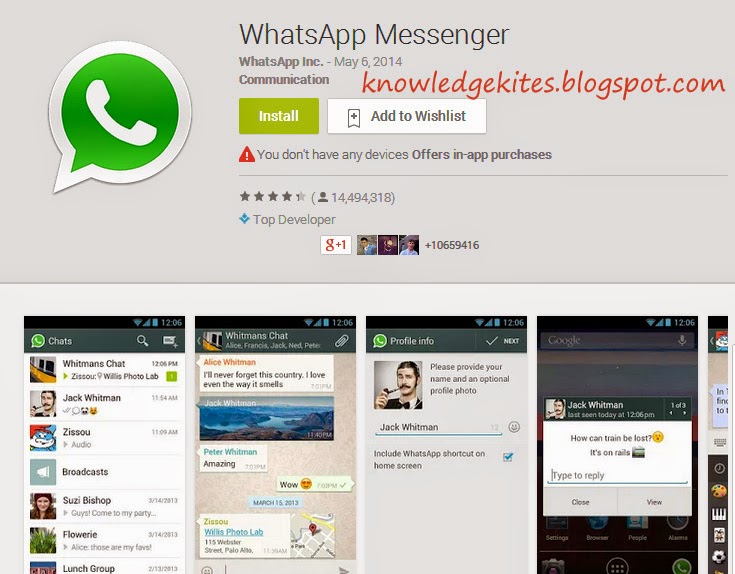
WhatsApp Messenger

WhatsApp is world’s largest online chatting application in android. Using this apps you can share audio, video and text message to number of friends securely.
Useful: How to hide internet message from unknown in whatsApp for android. For windows click here.
These time numbers of other whatsApp alternatives are available. You can also install and use whatsApp in your PC.
WhatsApp - Best Chatting App

NearBy

NearBy is bets android app to fine ideal location of any ATM, Shopping Place, Hotels and Restaurant nearby you. From the above link you can download this app in your android Smartphone in free.
NearBy - Best Location Based App

Facebook

Facebook is largest social media to publish your business over worldwide. Using this light weight FB apps must helps to share photos, Video, Images on slow internet connection.
Facebook - Best Android Apps

Paytm

Paytm is the Top best android apps for online recharge. Till now it downloaded over 1 million people and having good star reviews on google play store.
Paytm -Best Android Apps
Paytm is giving DTH recharge also.

OLX Free Classifieds

OLX in list of best buy and sell product instantly from your mobile. From these apps you can buy and sell any product over OLX.
OLX Apps - Best Android Apps
Product type: TV, Mobile Phone, Used Car, Bikes, Apartment on Rant, Furniture and other material.

Flipkart

FlipKart Android Apps gives option to buy new product. Out of your home town you can place your order on your home address. Using this service you never miss exclusive offer in distance place.
You can buy: Electronics item, Sports, Clothes, Watches and Books.
Flipcart Apps - Best Android Apps
Other two useful apps in these categories are given in below; From below link you can get users reviews, About Apps.
Battery Doctor (Battery Saving)
NewsHunt: India News/ebooks

Useful: Photo editing apps: Photoshop touch for android Smartphone
Useful: Top 5 Best Antivirus for Android Smartphone, Best apps in stolen mobile finder you must have to use,
Useful: How to unlock pattern lock in android mobile?

Related Search For this post:
Best android apps for your smart phone,
Essential apps for android Smartphone

Don’t miss to share this post with your friends, Comment if you have any useful apps suggestion in below comment box.


Saturday, June 21, 2014

Make Free Website with Free .in domain, Hosting Plan for free

Friends, each professional and business starter always start with website. If you want to make free website/Blog, Don’t miss to start develop your website/blog with .in (Free domain) and free hosting plan. After long time I found hosting company, that gives fully free website/Blog develop with top level domain in free service. So don’t miss this chance and develop your own website with .in domain. Here I giving best guide on “Create own Blog and website in free with free hosting and domain”

indiaGetOnline.in declare free service for Indian users, Who interested in develop own website/Blog in free. If you are not technical person, than you also built your own website in free. For that you have to simply follow three steps given in below.

Steps to Create Free Website and Blog with Free Hosting and Domain

Choose Best domain name on .in, Submit basic company/Private profile, Select Customized theme for your website and apply in your blog/website.

Step 1
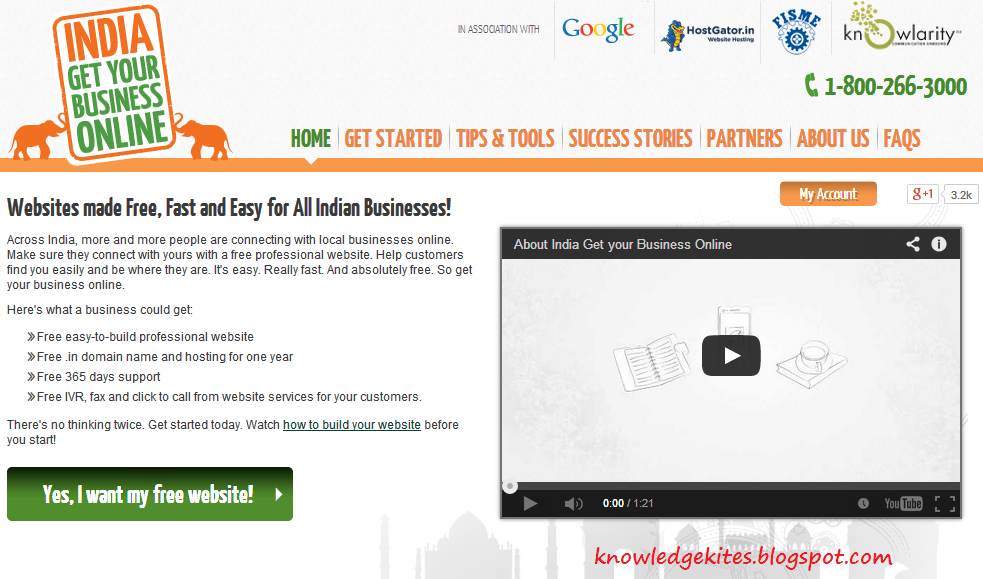
Go on: indiaGetOnline.in is website that’s providing this free service without any limitations. Now click on “Create My free website now”.


Make Free Website with Free Domain and Hosting plan


Step 2
In this step you can set your future website/Blog URL, after checking availability in over web. If Entered Domain is valid, you can be proceeding for next step.
Enter Domain as of your choice
Available Domain for Free website
Step 3
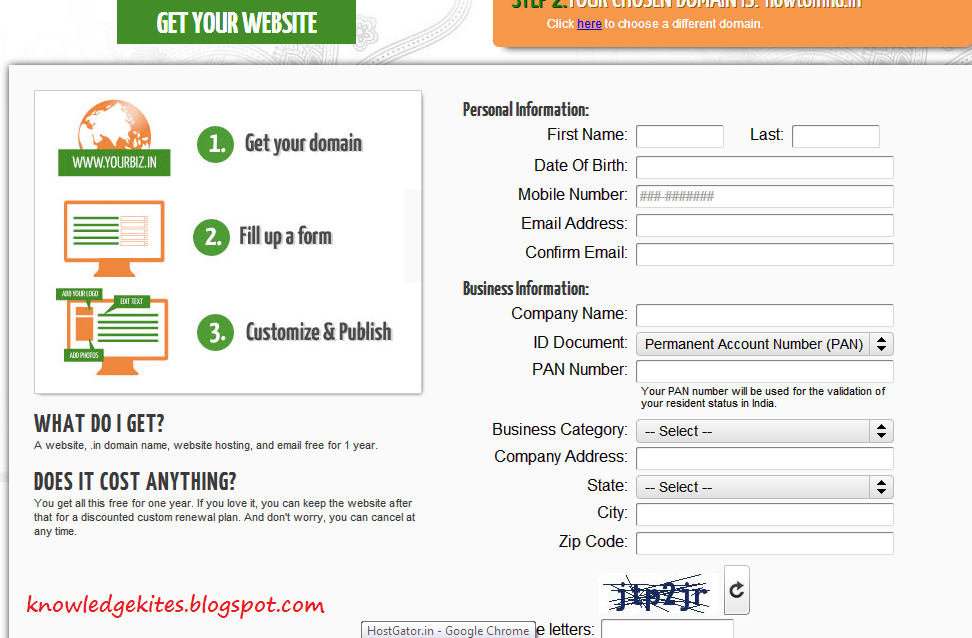
After click on continue, Now in this step you have to submit all the details correctly. Required details to submit in below form are,

  • Company Name/ User name
  • Date of Birth
  • PAN number
  • Full address Details

Submit All information in Detailed

After submitting all the information you can finish it. Now you are done nearly, All the require details has been mailed in your mail box for future Us. After Logging you can Add Your customized theme in your website in easy way.

Related Search For this post:
Free website development with free domain
Free Website develop free with Domain and Hosting plan in free for 1 year
Make free website

You can share your article with your friends, To create free website and blog. If you have any problem and suggestion than comment in below comment box. We will glad to help you.